Setting up SSH Keys in GitLab
Authentication-SSH keys
you can create SSH private-public key pair to setup a key-based authentication with the Discovery. Please follow the below steps to setup the key-based authentication.
-
This page explains how to connect to the GitLab if you want to contribute to work on
feature branchestopush/pullcode. -
SSH keys allow you to establish a secure connection between your local PC computer and GitLab.
-
Generating Private key. Fallow the Complete the step to generate the private key in your local PC.
-
Key Generation
-
To Generation Key Open the PowerShell or command prompt if you are on Windows OS.
ssh-keygenoutput :
Generating public/private rsa key pair:
Your identification has been saved in LENOVO/.ssh/id_rsa.
Your public key has been saved in LENOVO/.ssh/id_rsa.pub.
The key fingerprint is:
SHA256:FQt/D30S4xqfvjPEGU6LgBePkhLXW50/74eo1jP/W1Y 91866@LAPTOP-IUG191LS
The key's randomart image is:
+---[RSA 4096]----+
|        ...  .o. |
|      . .ooo.ooo |
|       o o+*+ +..|
|      . +.=..*o=.|
|       .So ..=++E|
|            ..* o|
|           . o.oo|
|          . = +o+|
|         ... +o=+|
+----[SHA256]-----+-
The output shows confirmation that the public and private keys have been generated and saved in the
./sshdirectory. -
open the ./ssh file copy the key, path to ./ssh file
C:\Users\<Device name>\.ssh.
Transfer Public Key
-
You have to transfer the public key to GitLab. Copy the public key in your local machine. Then, you can simply paste the copied key in the GitLab like below.
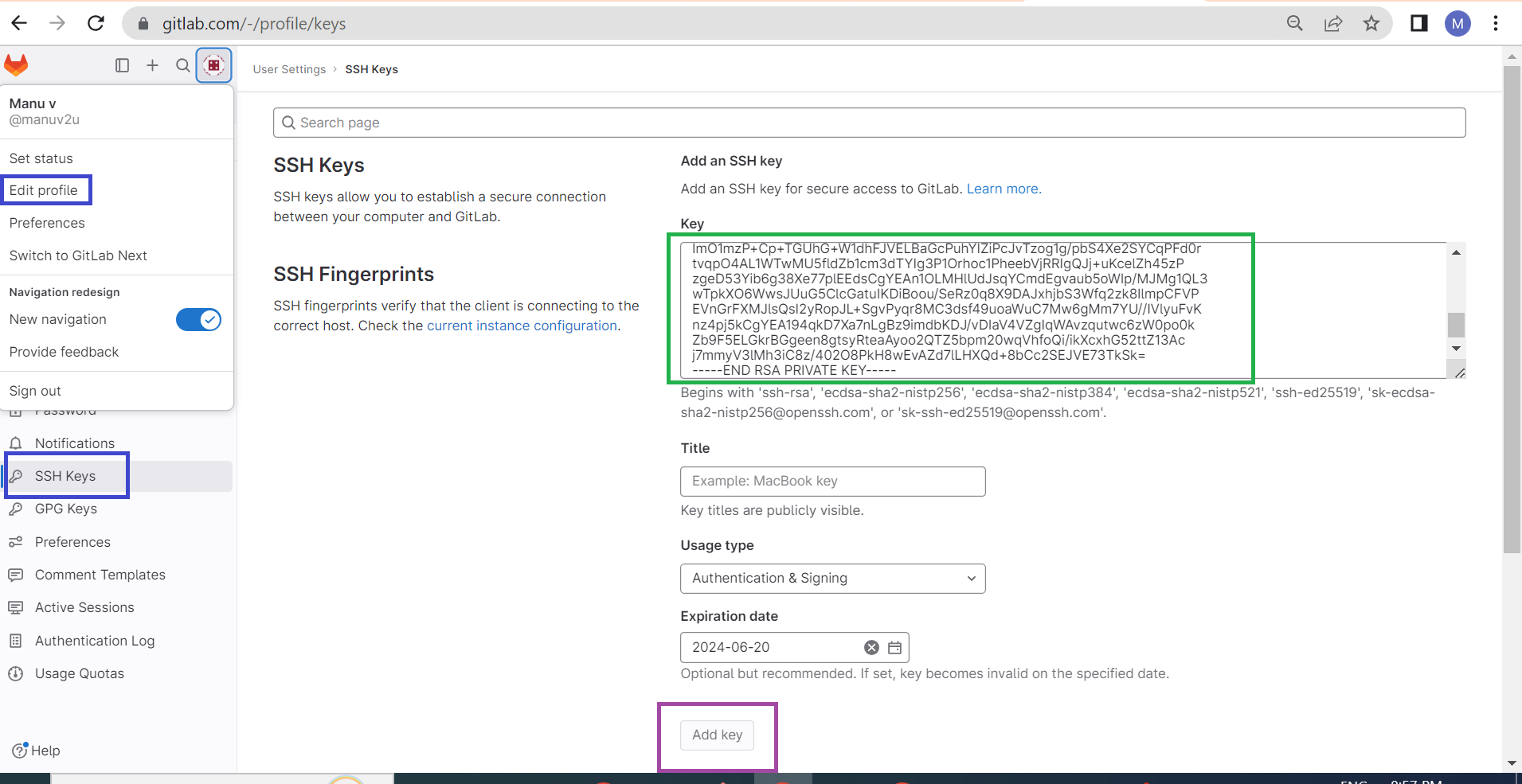
-
Give an appropriate
titleand theExpiration datefor the key. ClickAdd keybutton after you have entered all the details. You will see the added key under the list of Your SSH keys. Now, you canpush/pullcode via SSH from the repositories.