Exporting CloudWatch Logs to an Amazon S3 bucket using an AWS Lambda function
In this article we will build on that and go through the steps to automate exporting CloudWatch Logs to S3.
we will be using the following AWS services:
-
S3 (Bucket & Bucket Policy)
-
IAM (Lambda Role)
-
CloudWatch (Events Rules)
-
Lambda (Functions)
S3 (Bucket & Bucket Policy)
First, you will need to create the S3 Bucket to export the logs to. Once the bucket is created, you will need to update its Bucket Policy with the following:
{
    "Version": "2012-10-17",
    "Statement": [
        {
            "Sid": "uploadlogs",
            "Effect": "Allow",
            "Principal": {
                "Service": "logs.<region>.amazonaws.com"
            },
            "Action": "s3:GetBucketAcl",
            "Resource": "arn:aws:s3:::<bucket_name_here>"
        },
        {
            "Sid": "uploadlogs",
            "Effect": "Allow",
            "Principal": {
                "Service": "logs.<region>.amazonaws.com"
            },
            "Action": "s3:PutObject",
            "Resource": "arn:aws:s3:::<bucket_name_here>/*",
            "Condition": {
                "StringEquals": {
                    "s3:x-amz-acl": "bucket-owner-full-control"
                }
            }
        }
    ]
}
This policy will allow CloudWatch to PUT (WRITE access) objects to the bucket.
IAM Role
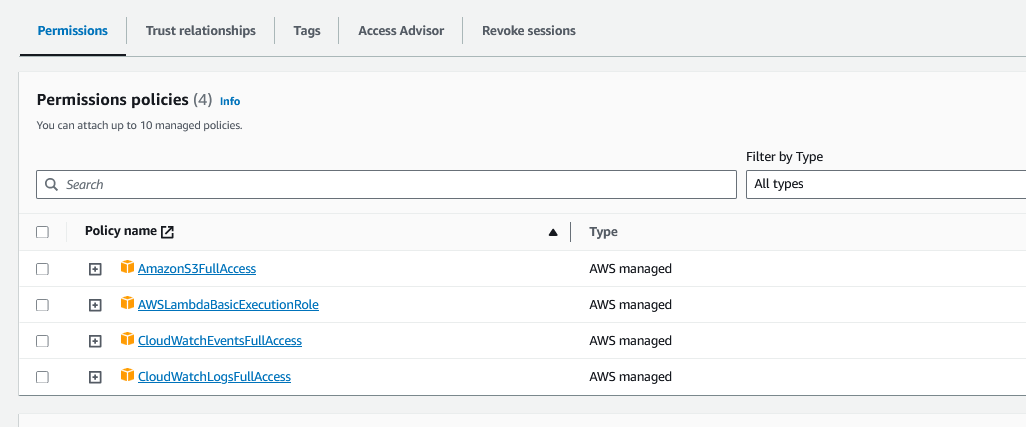
The AWS Lambda service will require permissions to log events and write to the S3 bucket we created. We will need to create the IAM Role ‘ms_md_cloudwatch_logs_export_role’ with the following policies attached to it:
Configure the Lambda Function
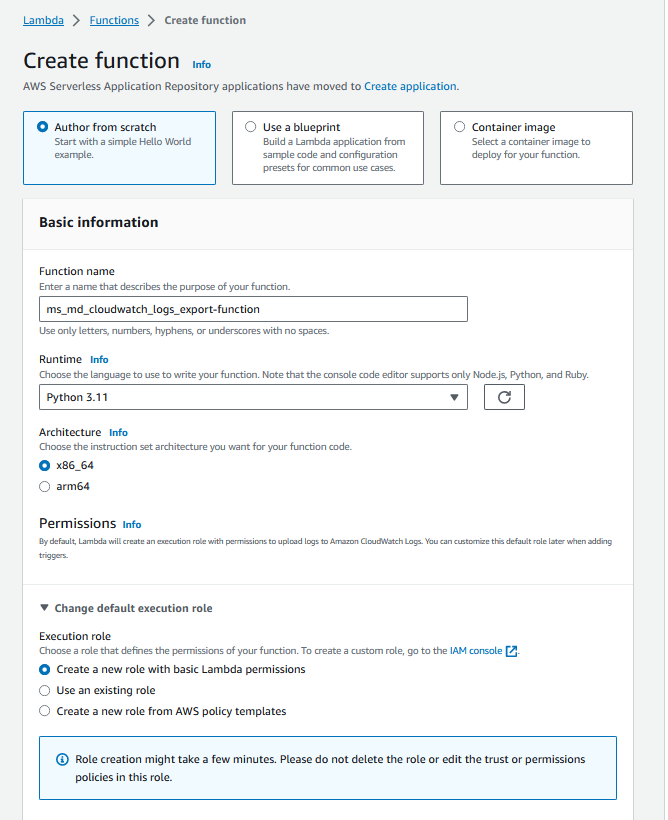
Navigate to Lambda >> Functions >> Create Function from there you will need to perform the following:
-
Choose ‘Author from Scratch’.
-
Function Name: ms_md_cloudwatch_logs_export_function
-
Runtime: Python 3.x
-
Under Permissions, you can either create a new IAM role or use an existing one. Select Use an existing role, and choose the IAM we created earlier. Now go ahead and click on Create Function.
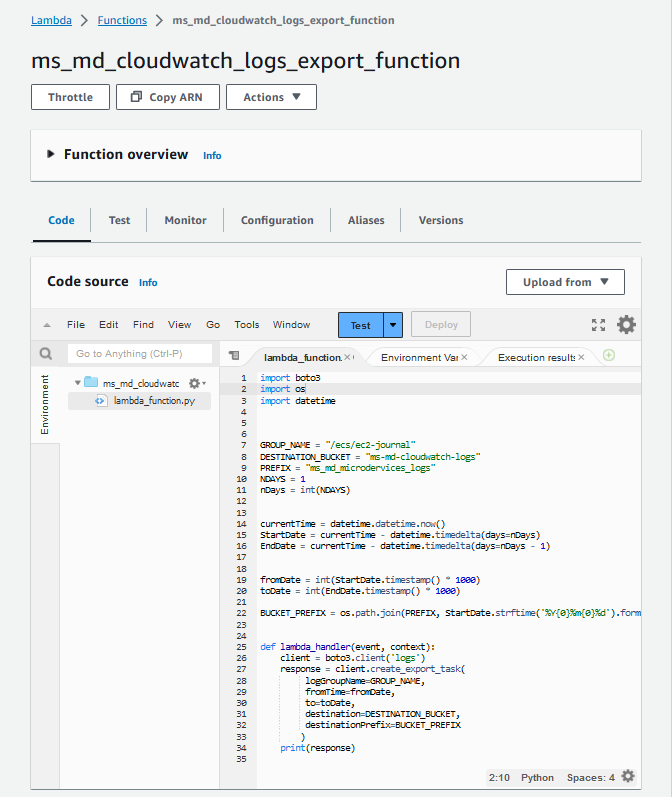
Under the Function Code section, you will need to paste the following code:
import boto3
import os
import datetime


GROUP_NAME = "<cloudwatch_logs_groups>"
DESTINATION_BUCKET = "s3_bucket_name_here"
PREFIX = "microdervices_logs"
NDAYS = 1
nDays = int(NDAYS)

"""
This portion will obtain the Environment variables from AWS Lambda.


GROUP_NAME = os.environ['GROUP_NAME']
DESTINATION_BUCKET = os.environ['DESTINATION_BUCKET']
PREFIX = os.environ['PREFIX']
NDAYS = os.environ['NDAYS']
nDays = int(NDAYS)
"""
"""
This portion will receive the nDays value (the date/day of the log you want
want to export) and calculate the start and end date of logs you want to
export to S3. Today = 0; yesterday = 1; so on and so forth...
Ex: If today is April 13th and NDAYS = 0, April 13th logs will be exported.
Ex: If today is April 13th and NDAYS = 1, April 12th logs will be exported.
Ex: If today is April 13th and NDAYS = 2, April 11th logs will be exported.
"""

currentTime = datetime.datetime.now()
StartDate = currentTime - datetime.timedelta(days=nDays)
EndDate = currentTime - datetime.timedelta(days=nDays - 1)

"""
Convert the from & to Dates to milliseconds
"""


fromDate = int(StartDate.timestamp() * 1000)
toDate = int(EndDate.timestamp() * 1000)

"""
The following will create the subfolders' structure based on year, month, day
Ex: BucketNAME/LogGroupName/Year/Month/Day
"""

BUCKET_PREFIX = os.path.join(PREFIX, StartDate.strftime('%Y{0}%m{0}%d').format(os.path.sep))

"""
Based on the AWS boto3 documentation
https://boto3.amazonaws.com/v1/documentation/api/latest/reference/services/logs.html#CloudWatchLogs.Client.create_export_task
"""


def lambda_handler(event, context):
    client = boto3.client('logs')
    response = client.create_export_task(
         logGroupName=GROUP_NAME,
         fromTime=fromDate,
         to=toDate,
         destination=DESTINATION_BUCKET,
         destinationPrefix=BUCKET_PREFIX
        )
    print(response)
You will need to paste the script under the Function Code section as shown in the screenshot below:
if you are added Environment Variables fallow this steps:
Under the Environment Variables section, you will need to add the Keys (case-sensitive) and their values.
-
DESTINATION_BUCKET
-
GROUP_NAME
-
PREFIX
-
NDAYS (review the documentation I left in the python script)
You may need to adjust the ‘Timeout’ duration under the ‘Basic Settings Section’ to more than 3 seconds. Keep in mind that changing the timeout may impact your function cost.
CloudWatch Events Rules
In order to schedule the Lambda Function to run or trigger at a specific time, you will need to create and configure a CloudWatch Events Rule. To create a new rule, you will need to navigate to CloudWatch >> Rules >> Create Rule.
To create an event rule, you will need to customize the event pattern or set a schedule and specify the target(s). If the Lambda function is already created, you can select the function as the target while creating the Event Rule. This will automatically add the trigger to the function.
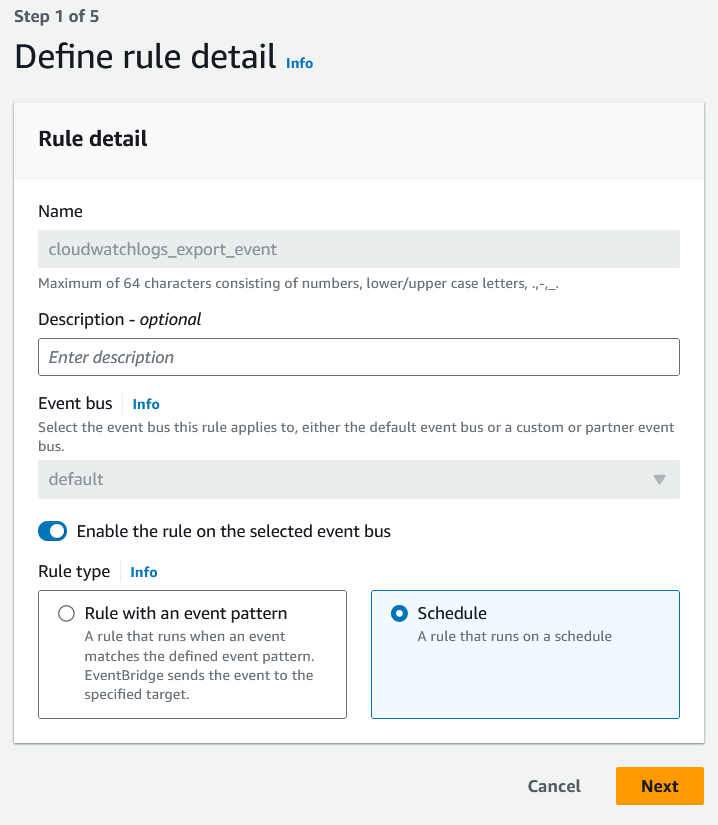
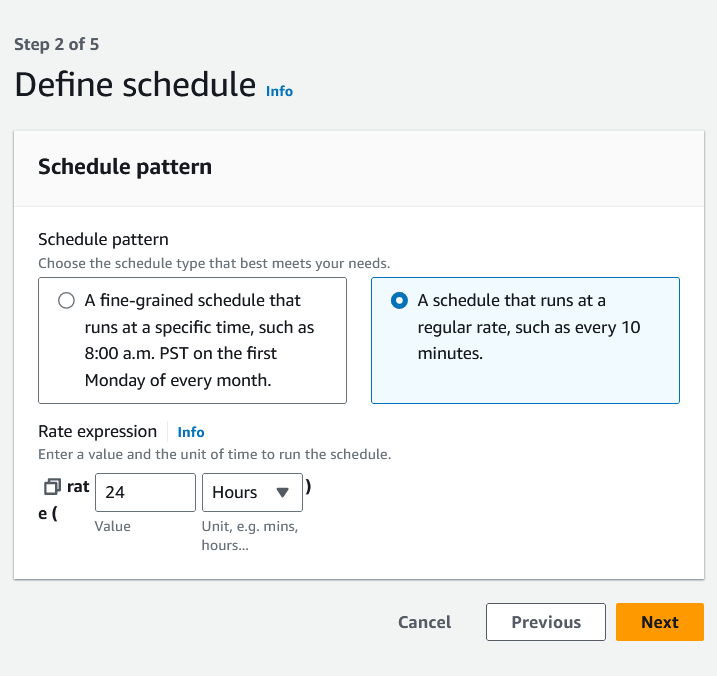
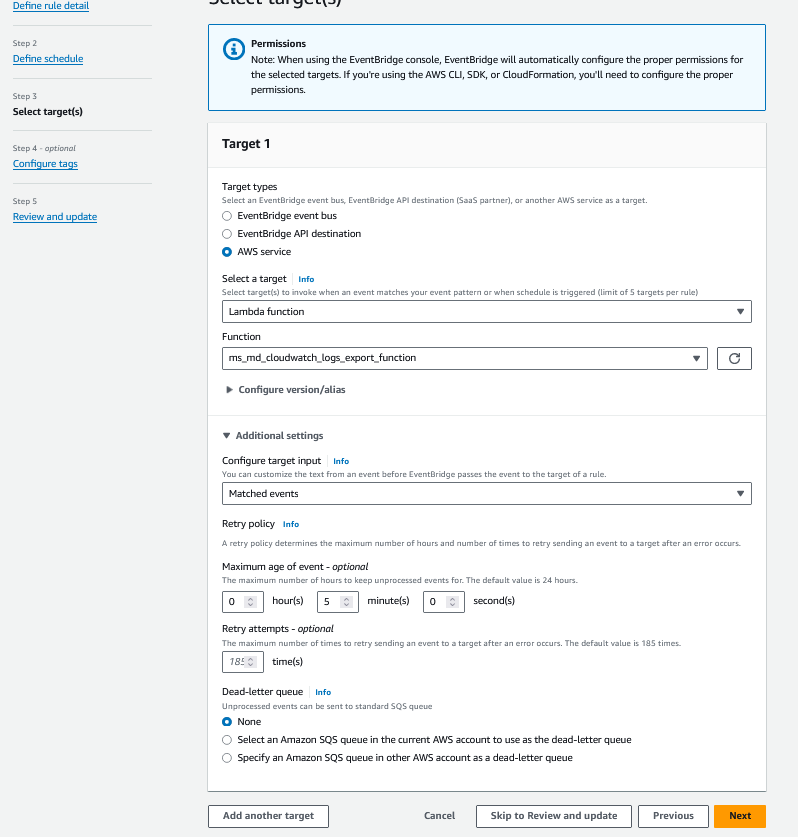
You can customize an event pattern or set a schedule to invoke a target.
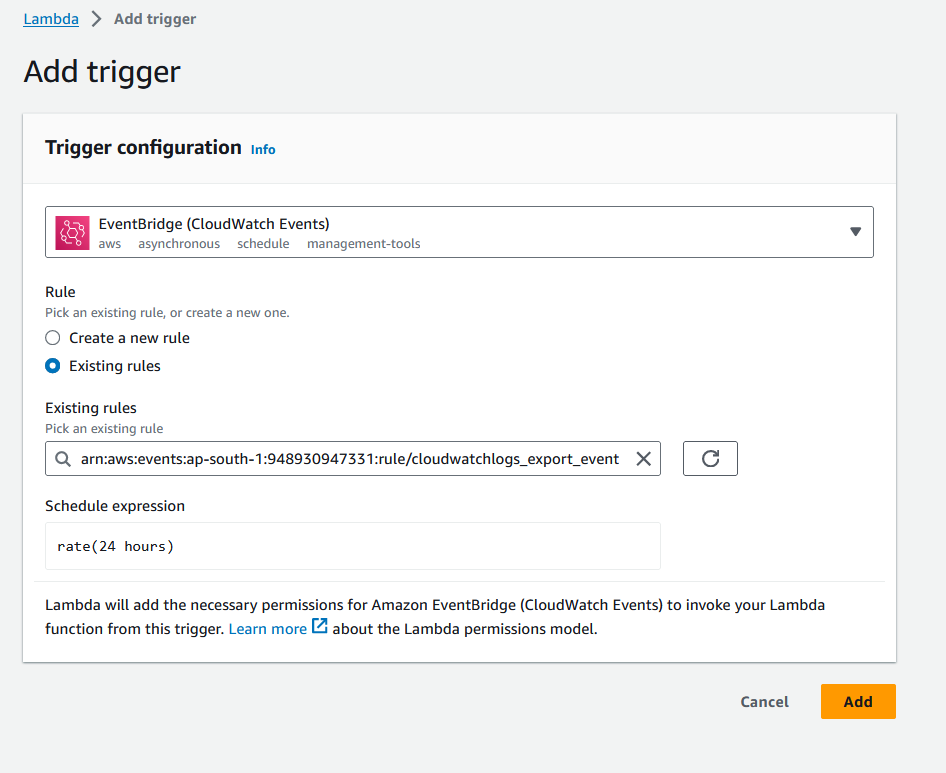
In order to add the trigger manually (if you have not done so while creating the Event Rule), you need to navigate to the Lambda Function you created and click on Add trigger.
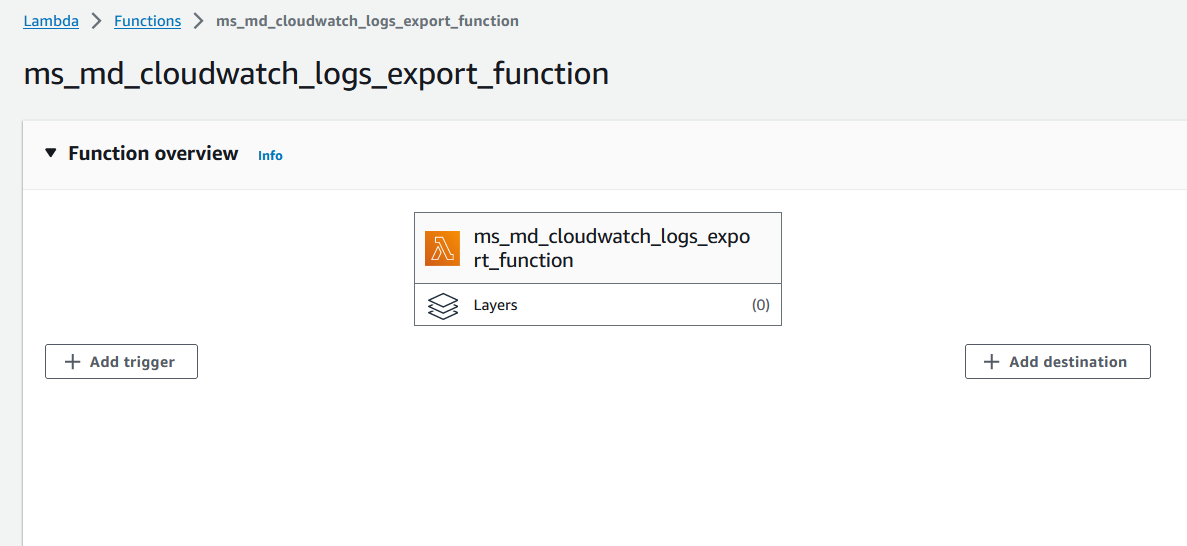
You can now configure the trigger as can be seen in the screenshot below: