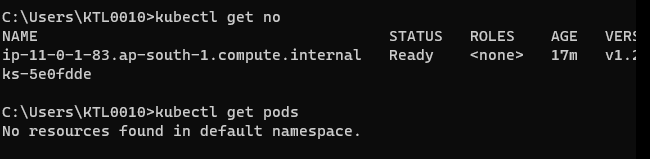
Granting IAM users access to the existing EKS cluster on AWS console
1. Pre-requisites
-
aws-cli v2 installed, Install AWS-CLI on windows
-
kubectl v1.28 installed
2. Introduction
By default, the user who created the EKS cluster will have full control. However, creating a new user and giving them permission for EKS or even administrator permission won’t be enough for them to access the already created cluster.
3. kubectl installation
Kubectl is a command line tool that you use to communicate with the Kubernetes API server.
For creating EKS cluster we are using version 1.28 , so provide the below command on powershell terminal,
curl.exe -O https://s3.us-west-2.amazonaws.com/amazon-eks/1.28.5/2024-01-04/bin/windows/amd64/kubectl.exe
Copy the kubectl.exe binary to the new directory.
Add this kubectl.exe path to the environment variables of local system.
Start -> Edit environment variables -> user variables -> click on path variable -> Edit -> New -> paste C:\Users\KTL0010\kubectl.exe -> click ok.
Verify the kubectl installation by command,
kubectl version --client
4. kubectl communication with API server
When first installing kubectl, it isn’t yet configured to communicate with any server.
To update the configuration to communicate with a particular cluster, run the following command,
Replace region-code with the AWS Region that the cluster is running. Replace my-cluster with the name of the cluster created on AWS console.
aws eks update-kubeconfig --region region-code --name my-cluster
5. Create a new user named UserB and provide them Administrator Access. Download .csv file for configuring access key and secret key on the local machine.
Configure the credentials on the local system by using the command,
aws configure --profile UserB
Copy and paste the Access key ID, Secret key, region name and output format.
6. Configuration of UserB on configmap aws-auth.yaml file
Command to add cluster to the context on UserB,
aws eks update-kubeconfig — region <region> — name <name-of-EKS-cluster> — profile UserB

UserA has to do add UserB, by modifying the aws-auth configmap(cm) in kube-system namespace,
kubectl get cm -n kube-system
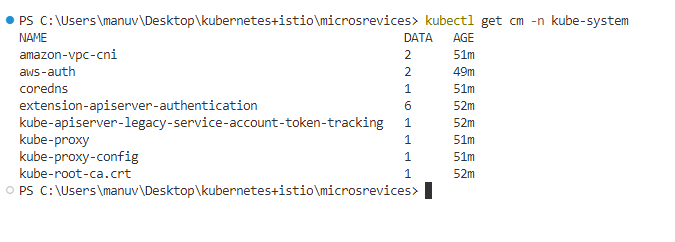
kubectl edit cm -n kube-systemThis will openup the aws-auth.yaml , then UserA will add the UserB to this, To add a new User, We will add below section in this yaml→
mapUsers: |
  - userarn: arn:aws:iam::<Account-id>:user/<User-name> //userarn of IAM user
    username: <User-name> //on aws-config file
    groups:
      - system:masters
apiVersion: v1
data:
mapRoles: |
- groups:
- system:bootstrappers
- system:nodes
rolearn: arn:aws:iam::948930947331:role/eks-dev-node-group
username: system:node:{{EC2PrivateDNSName}}
mapUsers: |
- userarn: arn:aws:iam::94XXXXXX331:user/abc@kanilebettu.com
username: abc@kanilebettu.com
groups:
- system:mastersSave the aws-auth.yaml file and run the command below,
aws eks update-kubeconfig --region <region> --name <name-of-EKS-cluster> — profile UserB