Gitlab Issues / Project Management Guidelines
GitLab Issues is a feature within the GitLab platform designed to facilitate project management and collaboration among development teams. It serves as a centralized tool for tracking tasks, bugs, feature requests, and other issues related to a project’s development lifecycle.
Here’s why GitLab Issues are essential and what they offer:
-
Task Tracking: GitLab Issues provide a structured way to track tasks and work items throughout their lifecycle. Each issue typically includes a title, description, labels, assignees, due dates, and comments, allowing team members to understand, prioritize, and work on tasks effectively.
-
Collaboration: Issues encourage collaboration among team members by providing a central space for discussing ideas, sharing updates, and providing feedback. This fosters transparency and keeps everyone on the same page regarding project progress and priorities.
-
Bug Tracking and Resolution: GitLab Issues are commonly used to report and track software bugs. Team members can create issues to describe the bug, assign it to the appropriate developer, track its status, and discuss potential solutions until it is resolved.
-
Feature Requests: Users and stakeholders can submit feature requests as GitLab Issues. These requests can be discussed, evaluated, and prioritized by the team, ensuring that the development efforts align with user needs and project goals.
-
Integration with Development Workflow: GitLab Issues seamlessly integrate with other GitLab features, such as source code repositories, merge requests, and CI/CD pipelines. This integration allows developers to reference and link issues directly to code changes, facilitating traceability and enabling efficient issue resolution.
-
Project Management: Issues serve as a central component of project management within GitLab. Teams can organize issues using labels, milestones, and boards, enabling them to prioritize tasks, plan sprints, and track progress across multiple projects or teams.
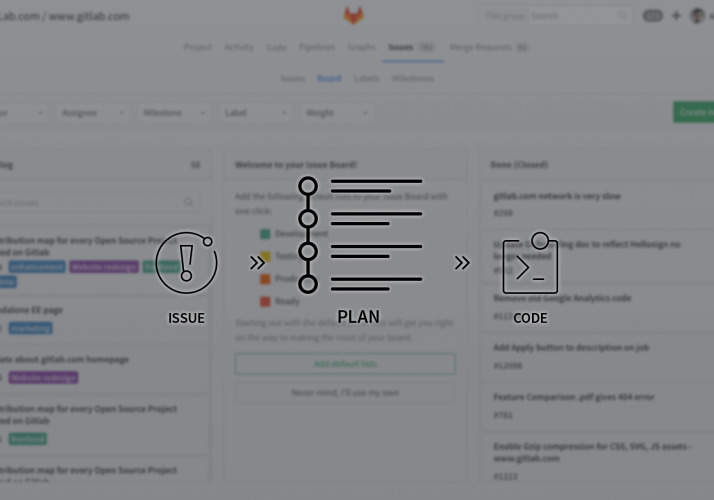
GitLab issues board
A GitLab Issues Board is a simplified approach to a complex problem. We built on top of GitLab’s existing issue-tracking functionality and leverage the power of GitLab issue labels by utilizing them as lists on a Kanban board. You can construct different views of your issue board while maintaining the same filtering and sorting abilities you see across the issue tracker. You can create multiple boards to capture every layer of visibility you need, and define the scope of the board by milestone, labels, assignee, and weight.
An Issue Board is based on its project’s label structure, therefore, it applies the same descriptive labels to indicate placement on the board, keeping consistency throughout the entire development lifecycle. And, you can click directly into an issue from the board to get started on your work.
1. Workflow tracking with GitLab issues
Whether you are a project manager trying to stay on top of a project’s status, or a manager of a product who needs to report on progress, workflow visibility is critical.
To create a workflow issue board, simply create labels for each stage of your workflow and add them as lists on a board. Once you’ve labeled an issue, it will automatically appear on the list. When the issue is ready to move on to the next stage, simply drag and drop it into the next list. You can also update the labels directly in the issue and your changes will automatically appear on the board.
2. GitLab Issues and milestone planning
As part of our project management capabilities, we’ve built in milestones. Milestones are used to track issues and merge requests associated with a specific goal to be accomplished within a specific time frame.
Similar to our assignee lists, you will be able to quickly create a milestone view directly from your board. This is particularly useful for those leveraging an Agile workflow. With the milestone list, you can easily move issues (stories) between different milestones (i.e. sprints, iterations).
For more details about gitlab Issues workflow.
Issues
Use issues to collaborate on ideas, solve problems, and plan work. Share and discuss proposals with your team and with outside collaborators.
You can use issues for many purposes, customized to your needs and workflow.
-
Discuss the implementation of an idea.
-
Track tasks and work status.
-
Accept feature proposals, questions, support requests, or bug reports.
-
Elaborate on code implementations.
Issues are always associated with a specific project. If you have multiple projects in a group, you can view all of the projects’ issues at once.
Create an issue
You can create an issue in many ways in GitLab:
-
From a project
-
From a group
-
From another issue or incident
-
From an issue board
-
By sending an email
-
Using a URL with prefilled values
-
Using Service Desk
Ex:
From a project
To create an issue:
-
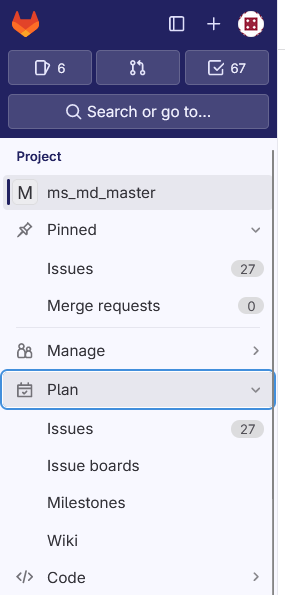
On the left sidebar, select Search or go to and find your project.
-
Either:
-
On the left sidebar, select Plan > Issues, and then, in the upper-right corner, select New issue.
-
On the left sidebar, at the top, select the plus sign ( ) and then, under In this project, select New issue.
-
-
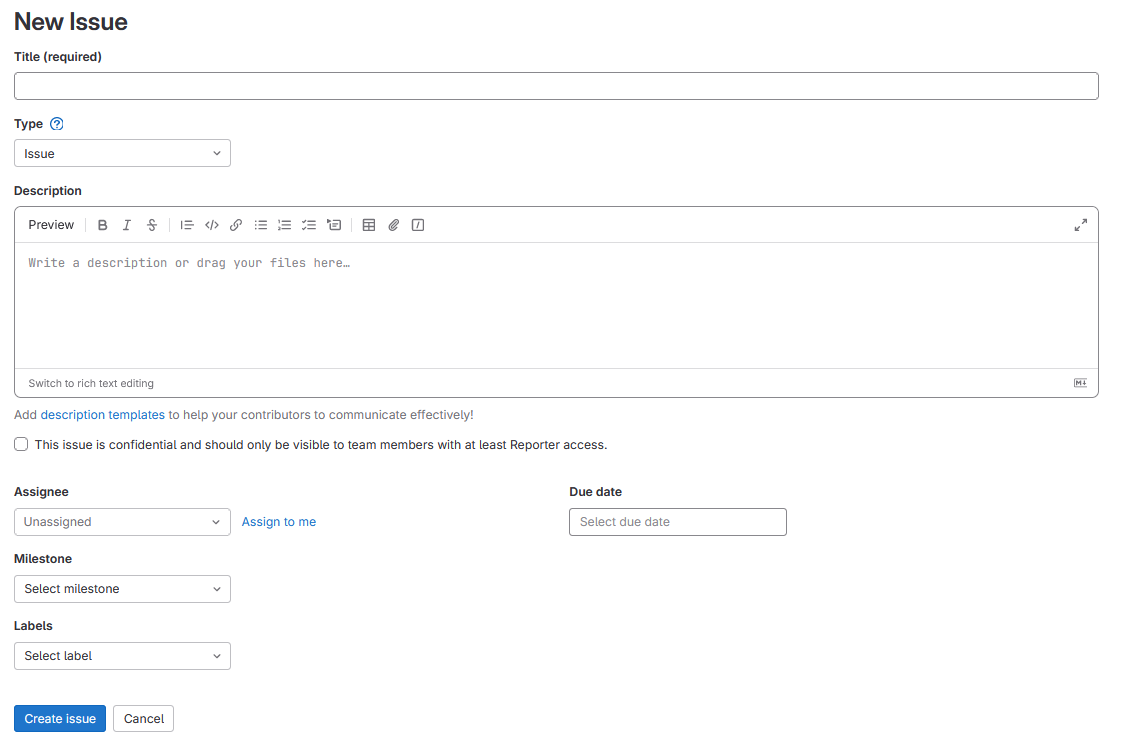
Complete the fields.
When you’re creating a new issue, you can complete the following fields:
-
Title
-
Type: either issue (default) or incident
-
Description template: overwrites anything in the Description text box
-
Description: you can use Markdown and quick actions
-
Assignees
-
Due date
-
Milestone
-
Labels
-
Select Create issue.
For more details check this link You can create an issue in many ways in GitLab
Close an issue
When you determine that an issue has been resolved or is no longer needed, please inform the Scrum Master so they can ensure its proper handling. Although the issue may be marked as closed, it should not be deleted.
|
- It is essential to delete branches once they have been merged into the develop branch and create new issues for subsequent tasks. - After each sprint, create new issues based on your tasks without depending on previous ones. |